Moving an ISP Router to Bridge Mode Without Two DHCP Servers

There can only be one DHCP server on the same network. That sounds like something everyone knows, but during an actual router cutover, it is very easy to connect the new device alongside the old one and then lose hours because devices on the network split into two groups that cannot talk to each other.
1-minute summary
- Symptom / problem
- Plugging a new gateway in parallel with the ISP router's DHCP broke the network
- Who should read
- People moving a home from an ISP router to their own gateway
- Fix in short
- Leave only one DHCP server on the network and swap cables step by step in the real cutover order
I recently moved my home network from the ISP router to my own gateway, leaving the ISP router to act only as a bridge. The actual work took about 5 hours one evening. My first attempt was to plug the new gateway into the switch alongside the existing DHCP server, which was still running. That failed immediately. I had to rearrange the cables step by step to leave just one DHCP server before it worked. This article follows the sequence that actually worked and the traps I encountered along the way. I have replaced all IP addresses, SSID names, and details specific to my home with example values.
The goal and the setup before the move
Before the move, the ISP router (an ONU and router in one box) handled everything: PPPoE, DHCP, DNS, and Wi-Fi. My Omada APs and PoE switch were tied to a Cloud controller at another site. I had an unused hardware controller at home, with no devices under it at all.
The goal was to make the ISP router a bridge, have my gateway handle PPPoE, DHCP, and DNS, provide Wi-Fi only through the APs, and keep every device on its existing IP address. The LAN would stay at 192.168.10.0/24 so I would not have to track down and change devices configured to reference specific IP addresses.
Record the existing settings before touching anything
Once the ISP router becomes a bridge, all the settings in it are gone. I recorded the 7 port forwards, 8 DHCP bindings, and the lease table with 23 devices, then scanned the entire network to make an IP map for comparison after the move.
# สแกนทั้งวงเก็บไว้ก่อนย้าย เทียบกับหลังย้ายได้ทีละ IP
sudo arp-scan --localnet --interface eth0 | tee ipmap-before.txt
nmap -sn 192.168.10.0/24 -oG - | awk '/Up$/ {print $2}' >> ipmap-before.txt
sort -u ipmap-before.txt | wc -l
I collected this information because several devices had manually configured IP addresses (static) and did not appear in the DHCP lease table at all. Looking only at the lease table, I would have forgotten those devices existed.
After switching to bridge mode, the old router has no information left to check. Without a record, you will not know which device used which IP address, or even which devices have disappeared.
The failed first attempt: connecting alongside the existing DHCP server
I plugged the new gateway's LAN port into the switch while the ISP router was still serving DHCP. The gateway, still on factory settings, handed out 192.168.0.x addresses on the same switch. That left two DHCP servers competing to answer on the network, and devices requesting new IP addresses ended up on different subnets.
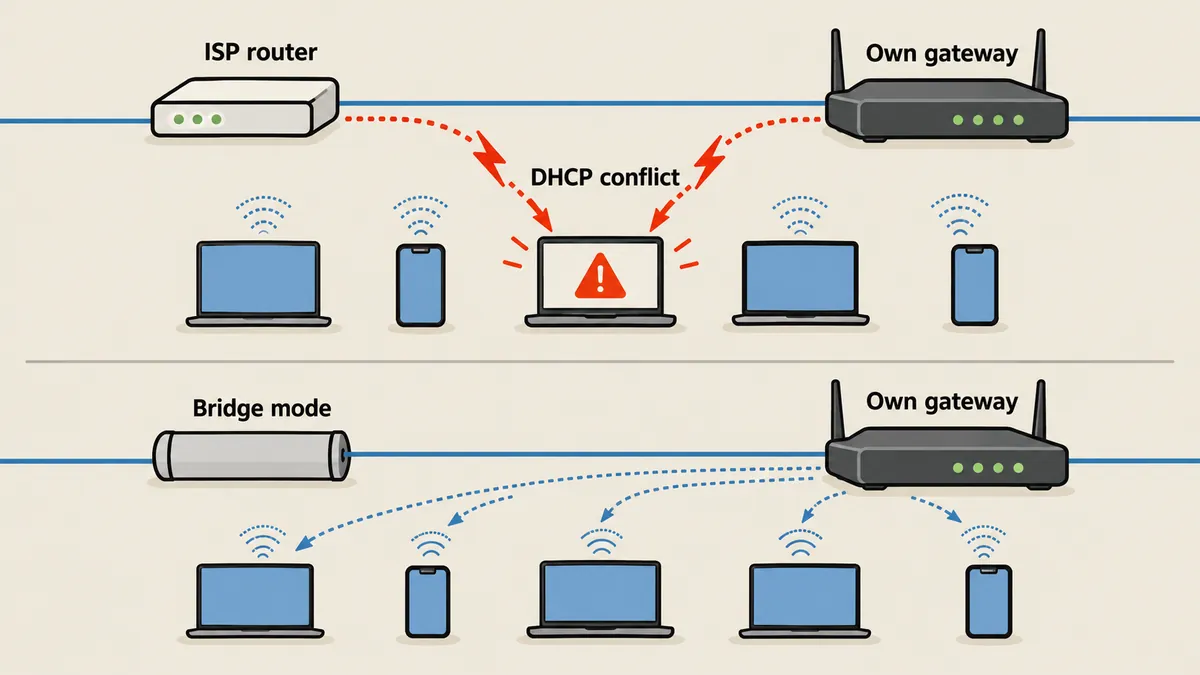
The controller ended up with a 192.168.0.x address, while the laptop I was using to manage it stayed on the original 192.168.10.x subnet. The two could not communicate, and I did not have admin rights on my machine to add a second IP address. I tried to get ahead of the problem by changing the gateway's Default LAN to match the original subnet, but the controller would not allow the change until a gateway was in the site. Trying to make the change returned the error LAN interfaces could not be none.
This is easy to check directly by having a machine ask for all DHCP servers on the network. If two servers answer, there is already a conflict.
# ถามหา DHCP server ทุกตัวในวง ผลลัพธ์ควรเหลือตัวเดียวเสมอ
sudo nmap --script broadcast-dhcp-discover -e eth0
# ถ้าเห็น Server Identifier สองค่า แปลว่ามี DHCP ซ้อนกัน
I learned afterward that I should run this command every time before plugging in a cable, rather than after things break.
The sequence that worked: move the cables in one go to leave one DHCP server
What worked was physically moving the cables in one go. Previously, the switch connected to the ISP router; in the new setup, the switch connected to the gateway's LAN, and the gateway's WAN2 connected to the ISP router. This made the gateway the only DHCP server, with internet access through the ISP router using double NAT, so work that needed internet access could continue.
- Record the existing settings and make an IP map as described above.
- Omada devices can be tied to only one controller at a time. Use Forget on the old Cloud controller before adopting them into the controller at home. Also, if the site has no SSID when the first AP is adopted, the AP will not provide Wi-Fi at all. I created the SSID first, keeping the same name, password, and WPA2 settings, so devices at home reconnected automatically. I manually disabled Wi-Fi on the ISP router beforehand to avoid having two sources of the same SSID and devices connecting to the old one.
- Move the cables as described: switch to gateway, and ISP router to WAN2.
- Find the controller by MAC address, then adopt the gateway through the API (I have already covered the API in the [Omada REST API article](/article/omada-oc200-rest-api)).
- Move the ISP router's LAN to 192.168.40.1 to prevent WAN and LAN overlap when the gateway uses 192.168.10.1, then set the gateway's Default LAN to 192.168.10.1/24, with a pool from .100 to .200 and a lease time of 120 minutes.
- Add 13 DHCP reservations: the original 8 plus 5 Omada devices, so every device gets its original IP address.
- Cut PoE power to the APs so they request new leases.
- Have the ISP switch its router to bridge mode, then configure the gateway for PPPoE.
During the final stage before the ISP router was switched to bridge mode, I temporarily set its DMZ to point to the gateway's WAN so double NAT would remain usable, then configured the actual forwards on the gateway.
The controller goes down with the switch powering it
The first trap I did not expect was that my controller was powered by PoE from the very switch it managed. When I used Forget and adopted the switch again, the switch reset every port, taking the controller down with it. The controller then took several minutes to boot. During that time, the web interface was already up, but the API still returned 404. Anyone writing a script to call the API at that point would think the script was wrong. The fix was to move the controller to a separate USB power supply.
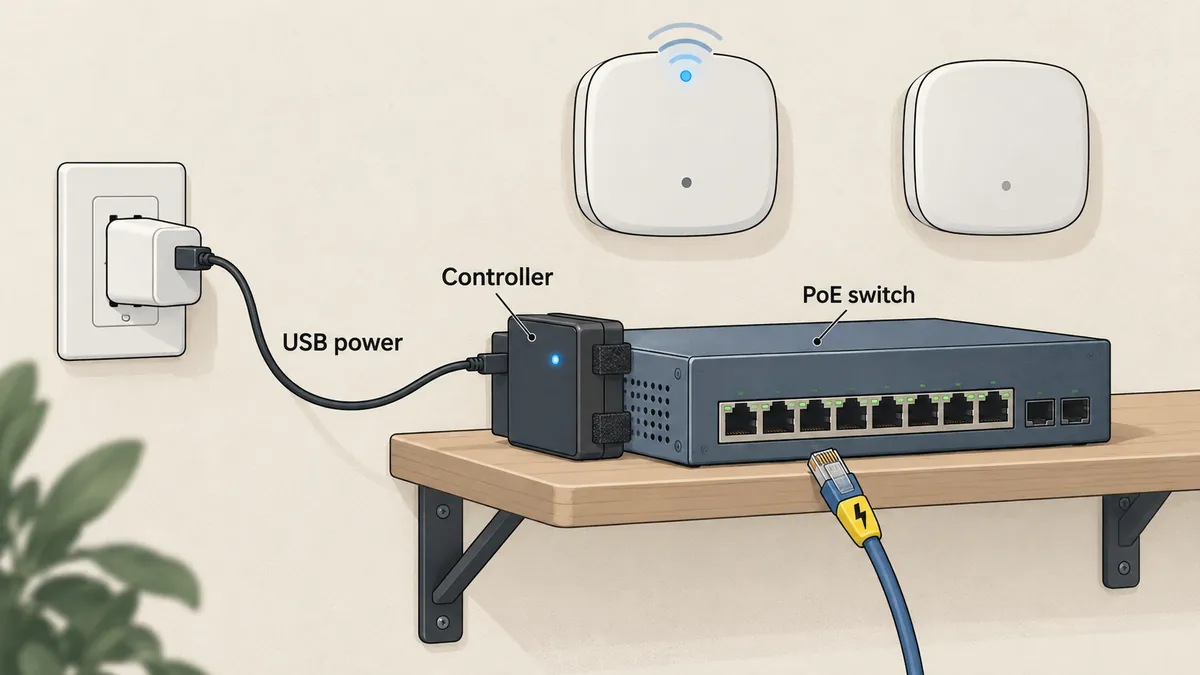
The device that needs to restart other devices must not go down along with them. For me, it only cost time, but if this were a repair in the middle of the night, having no access to the control interface at all would be a much worse situation.
Small traps after the cutover
Several more small problems appeared after I moved the cables, listed here in the order I encountered them.
| Symptom | Actual cause | Fix |
|---|---|---|
| APs could not reach the controller; Wi-Fi disappeared | Devices holding leases on the old subnet did not move automatically; lease time was 120 minutes | Reboot the switch through the controller; PoE power drops, and the APs request new IP addresses matching their reservations |
| Servers with manually configured IP addresses were unreachable | The old gateway at .1 was temporarily gone | Recovered on their own when .1 returned |
| Unused SFP port showed Configuring | Normal gateway behavior | No fix needed; the configuration was not wrong |
| ping dropped for 2 to 3 minutes | Switch firmware upgrade | Wait |
| All wired devices disappeared; Wi-Fi worked normally | One faulty RJ45 connector | Re-terminate the cable |
| Windows did not answer ping after the move | Windows firewall blocked ICMP echo | Add an allow rule |
The most time-consuming issue was all the wired devices disappearing while Wi-Fi worked normally. I had to check the gateway port link status in the controller, where I found an alert saying one port was down. It turned out to be a single faulty RJ45 connector. Re-terminating it fixed the problem immediately. The lack of ping replies had nothing to do with the network: Windows firewall was already blocking ICMP echo by default.
# เปิดให้ ping เข้าเครื่อง Windows ได้ (ICMPv4 echo request)
New-NetFirewallRule -DisplayName "Allow ICMPv4-In" `
  -Protocol ICMPv4 -IcmpType 8 -Direction Inbound -Action Allow -Profile Private

# เครื่อง Windows ที่ค้างอยู่วงเก่า ให้ขอ lease ใหม่
ipconfig /release
ipconfig /renew
ipconfig | findstr /i "IPv4 Gateway"
On a Linux machine stuck on the old subnet, sudo dhclient -r eth0 && sudo dhclient -v eth0 can also request a new lease.
The final step: bridge mode and what remains unresolved
For the final step, the ISP router's admin menu had no bridge option I could select myself. The ISP had to configure it. After that, I changed my gateway's WAN to PPPoE and set MTU 1492. The first visible hop was now the ISP's gateway, but the outgoing IP was still behind CGNAT as before.
The ISP router handles everything
PPPoE, DHCP, DNS, and Wi-Fi are all in one box. The advantage is simplicity and having nothing to maintain. The disadvantage is that configuration is limited to what the box's menus allow, and there is no bridge option I can select myself.
My gateway manages the whole network
The ISP router only acts as a bridge. I can configure everything myself in the controller, in exchange for having to diagnose every problem myself when something breaks. Things that worked through the ISP router may also stop working.
I need to be clear that this is still unfinished. After the switch to bridge mode, traffic to ports opened through the ISP's DDNS service still did not reach my gateway. I have not yet determined where the cause lies. I covered the DDNS port range and inbound testing methods separately in the article on CGNAT and a 10-port DDNS window, so I cannot say that services requiring access from outside are working yet.
Summary
The sequence I would use again is to record the existing settings and make an IP map first, create the SSID before adopting the APs, move the controller to its own power supply, move the cables in one go to leave just one DHCP server, and switch the ISP router to bridge mode as the final step. Before plugging anything into the switch, run broadcast-dhcp-discover to check how many DHCP servers are on the network. Whether to use your own gateway to manage the whole network or leave it to the ISP router depends on what is convenient and how much time you have. I chose to manage it myself because I wanted control over every device's IP address.
If there are gaps in my sequence, or I find an answer to the unresolved inbound port issue, I will come back and update the article.
Want us to set this up?
Get help with server setup, configuration, migration, or troubleshooting. Save time for the work that matters.
Hit something like this? Stuck somewhere?
Come trade notes on the LinuxThai board


Comments 0
No comments yet — be the first