Router Forms over CDP: Apply Ignores .value, Typing Works

A form that reports no error is more dangerous than one that breaks, because it makes me suspect every part of the script except the part that is actually wrong. I put values into the fields, but the page never knew anyone had typed anything.
1-minute summary
- Symptom / problem
- Filling a router IP-reservation form over CDP with element.value, Apply does nothing and shows no error.
- Who should read
- Anyone driving a router or device admin page through Chrome DevTools Protocol.
- Fix in short
- Send real key events into the visible field instead of setting .value, and make the script look first, confirm, then act.
I happen to own an ISP fiber router whose admin page has a menu for reserving IP addresses by MAC (DHCP Binding). There is no API, so I wrote a Python script to drive Chrome through CDP and fill out the form for me. The script finished cleanly, threw no exception, and clicked Apply, but no reservation appeared. The page stayed completely still: no red box, no message. I spent several rounds changing selectors before realizing the selectors were not the problem at all.
I have replaced all entry names, MAC addresses, and IP addresses in this article with sample values. This account comes from the admin page of the one router I tried. The technique may therefore apply to admin pages that behave similarly, but I have not tested other models or read the frontend code to see how the form is built. The framework explanation in this article is a hypothesis consistent with the symptoms, not a proven fact.
Symptoms: All fields filled, Apply does nothing
The reservation form has fields for an entry name, MAC, and IP, with MAC and IP split into several smaller fields, one segment per field. My first script did what anyone would do: find the element and set .value directly.
# รอบแรก: ตั้งค่าตรง ๆ ด้วย JS แล้วกด Apply
fill = """
(() => {
  const set = (id, v) => { document.getElementById(id).value = v; };
  set('name_new', 'living-tv');
  'AA:BB:CC:DD:EE:FF'.split(':').forEach((p, i) => set('mac_new_' + i, p));
  '192.168.10.50'.split('.').forEach((p, i) => set('ip_new_' + i, p));
  document.getElementById('btn_apply').click();
})()
"""
cdp.js(fill)
# คืนค่าปกติ ไม่มี exception ไม่มี error ในคอนโซล
When I looked at the screen, every field contained its value. I could clearly see that they were filled in, but clicking Apply left the reservation table unchanged. No new row, no message. This model's login page has an image captcha, so my script starts only after login. That has nothing to do with this bug.
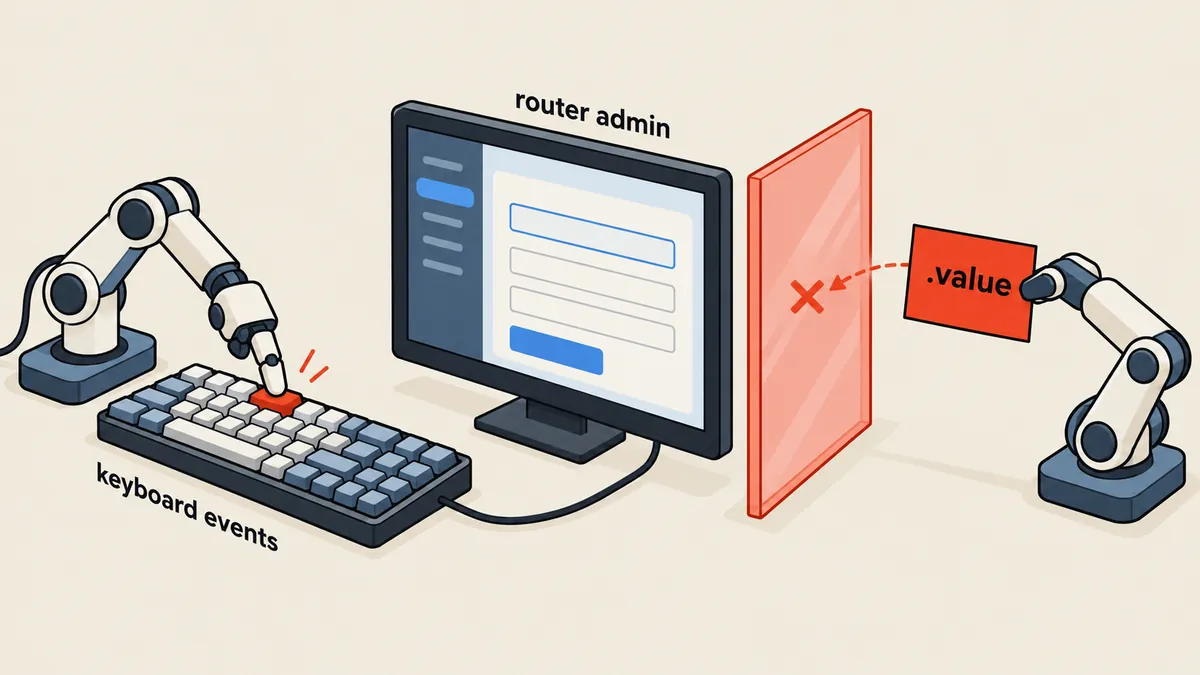
Three wrong guesses
A click that produces nothing led me straight to the usual scripting suspects. Here they are in the order I actually tried them.
- I guessed the selector was wrong, so I switched from id to name to CSS path and checked the results. The values still appeared in the fields, which meant I definitely had the right elements.
- I guessed the form had not finished loading, so I added waits for the elements and delays before clicking. Every delay I tried produced the same result.
- I guessed the form was in an iframe with a different context. I checked the page's frame tree, but that was not it either. The form was in the main page.
These three guesses took a fair amount of time because all three explain "why I cannot find it." My problem was that I had found it, filled in the values, and could see those values on the screen.
The test: Manual typing works, setting values with JS does not
A simple experiment settled it. I opened the same page myself, typed the same values into the fields with the keyboard, and clicked Apply. The reservation appeared immediately. Same form, same values, same button. The only difference was how the values got into the fields.
That left one explanation that fit all the symptoms: the form does not read values from the DOM when Apply is clicked. Instead, it keeps values in its own internal variables and updates them when typing events occur. Setting .value through JS changes only what I can see in the field. It does not fire keydown or input to let anything know. The internal variables therefore remain empty, and when Apply checks those empty variables, it does nothing without reporting an error.
I did not inspect the page's code to confirm that it really keeps values in an "internal model," and I do not know which framework it uses. Only two things have been demonstrated: setting .value does not work, and sending real key events does. The rest of the explanation is a guess that fits the symptoms.
The fix: Send real key events to the visible fields
CDP has an Input.* command group that sends browser-level events, as though someone were pressing real keys. I used two commands: Input.dispatchKeyEvent to type one character at a time, and Input.insertText to enter the whole text after focusing the field. I tried both, and both worked. The only difference was how closely the events resembled real typing. The script I rewrote for readability looks roughly like this. It uses only websocket-client, without a browser automation library.
# cdp_min.py - ตัวขับ CDP แบบบางที่สุด (pip install websocket-client)
import itertools, json, os, urllib.request
import websocket

class CDP:
    def __init__(self, port):
        tabs = json.load(urllib.request.urlopen(f"http://127.0.0.1:{port}/json"))
        page = next(t for t in tabs if t["type"] == "page")
        self.ws = websocket.create_connection(page["webSocketDebuggerUrl"], timeout=15)
        self._id = itertools.count(1)

    def call(self, method, **params):
        i = next(self._id)
        self.ws.send(json.dumps({"id": i, "method": method, "params": params}))
        while True:                               # ข้าม event ที่ไม่ใช่คำตอบของเรา
            msg = json.loads(self.ws.recv())
            if msg.get("id") == i:
                if "error" in msg:
                    raise RuntimeError(msg["error"])
                return msg["result"]

    def js(self, expr):
        r = self.call("Runtime.evaluate", expression=expr, returnByValue=True)
        return r["result"].get("value")

    def type_text(self, text):
        for ch in text:                           # กดทีละตัว = keyDown + keyUp
            self.call("Input.dispatchKeyEvent", type="keyDown", text=ch, key=ch)
            self.call("Input.dispatchKeyEvent", type="keyUp", key=ch)

cdp = CDP(int(os.environ["CDP_PORT"]))            # พอร์ตของ Chrome ที่เปิด remote debugging
Field selection needs care. This form has a hidden template used to create new rows. The template's id has no slot number suffix, while an actual created row gets an id with a slot suffix (in the form ...:N). Targeting the first id found means typing into an invisible template whose values nothing reads. I have to target only the new slot's visible fields.
# เลือกเฉพาะช่องที่มองเห็นจริงของ slot ใหม่ แล้วโฟกัสทีละช่อง
FIND = """
(slot) => [...document.querySelectorAll('input')]
  .filter(e => e.id.endsWith(':' + slot) && e.offsetParent !== null)
  .map(e => e.id)
"""

def fill_field(cdp, field_id, value):
    ok = cdp.js(f"""(() => {{
        const e = document.getElementById({json.dumps(field_id)});
        if (!e || e.offsetParent === null) return false;   // ซ่อนอยู่ = ไม่ใช่ตัวที่ต้องการ
        e.scrollIntoView({{block: 'center'}});
        e.focus(); e.select();                              // เลือกค่าเดิมไว้ให้พิมพ์ทับ
        return document.activeElement === e;
    }})()""")
    if not ok:
        raise RuntimeError(f"โฟกัสช่อง {field_id} ไม่ได้")
    cdp.type_text(value)
The field ids in this example are made up. Actual ids differ between models, so first open DevTools and inspect the ids of the visible fields in the new row. In practice, I went through the fields in order: name, then MAC, then IP, before finally clicking Apply.
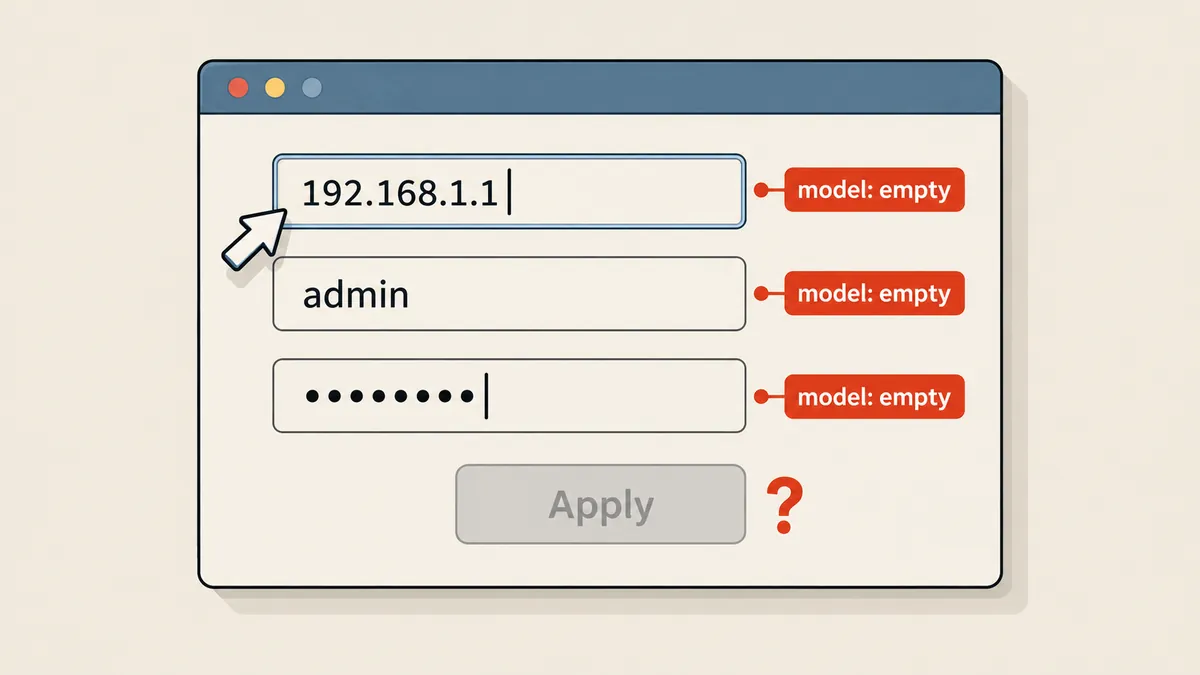
After switching to real typing, I clicked Apply and the entry actually appeared in the table. One method I did not try was calling dispatchEvent(new Event('input')) myself after setting .value. In principle, it should work with a framework that listens for that event, but I did not test it on this page, so I cannot say whether it works.
element.value = ...
Changes only what is visible in the field. There is no key or input event, so a form listening for typing never knows. Apply does nothing, with no error to investigate.
Input.dispatchKeyEvent / insertText
Sends browser-level events to the focused field. The form receives events as though someone were typing. Only the new slot's visible fields should be targeted.
Limits that fail silently
After fixing the event issue, I encountered another group of problems with very similar symptoms: clicking Apply did nothing, but the cause was the admin page's own rules. I confirmed every item in this group through actual use.
| Limit | What happens when violated | Notes |
|---|---|---|
| Entry names must be 1-10 characters long | Clicking Apply does nothing | Sometimes "Please enter a value with 1 ~ 10 characters" appears, but it is inconspicuous and easy to miss |
| A maximum of 10 reservations | The 11th entry produces "The number of entries has reached the maximum limit" | Count before adding instead of waiting for the page to complain |
| Sessions expire quickly | Clicking a menu does nothing | Log in again, then start from the menu page |
A name like living-room-tv is 14 characters long. Every character can be typed and displayed in the field, but Apply does nothing. I lost another round of time to this because I thought the event bug had returned. The script now checks the length before typing the first character. A short name such as living-tv (9 characters) passes easily.
Another point is that making a reservation does not immediately give the target device its new IP address. The device gets the reserved IP when it renews its lease. This router has a lease time of 600 seconds, so I can wait or tell the device to request a new lease immediately.
# ฝั่งเครื่อง Linux ที่ถูกจอง: ปล่อย lease เก่าแล้วขอใหม่
sudo dhclient -r eth0 && sudo dhclient eth0

# หรือถ้าใช้ NetworkManager
nmcli con up "Wired connection 1"

# เช็กว่าได้ IP ที่จองไว้แล้ว
ip -4 addr show eth0 | grep inet
Script discipline: Inspect first, confirm later
A form that can silently overwrite values needs a script that is more careful than a person, because a person sees the screen throughout, while a script sees nothing unless instructed to look. I split the script's commands into two groups: read-only commands and write commands, with writes taking two stages.
listreads the existing reservation table, displays the name, MAC, and IP for each slot, and counts n/10 before anything else.set NAME MAC IPfirst checks for conflicts. If the IP or MAC duplicates another slot, it rejects the request as CONFLICT. It also rejects names longer than 10 characters or a table already full with 10 entries.- If the checks pass, it fills the fields by typing and saves a screenshot. It does not click Apply at this stage (dry-run).
- A person opens the screenshot to check that the values really are in the right fields and row.
- Run it again with
--apply. The script clicks Apply, then reads the table back and checks for a new row matching the request. A mismatch counts as a failure.
The check at step 2 is short enough to put at the start of every write command. The example below is a shortened version I rewrote to preserve the essential checks from the real script.
MAX_ENTRIES, MAX_NAME = 10, 10

def check_before_set(rows, name, mac, ip):
    """rows = [{'slot': 1, 'name': 'nas', 'mac': 'AA:BB:..', 'ip': '192.168.10.20'}, ...]
    คืนข้อความเหตุผลที่ต้องปฏิเสธ หรือ None ถ้าไปต่อได้"""
    if not (1 <= len(name) <= MAX_NAME):
        return f"REFUSE ชื่อต้องยาว 1-{MAX_NAME} ตัวอักษร (ตอนนี้ {len(name)})"
    if len(rows) >= MAX_ENTRIES:
        return f"REFUSE รายการเต็ม {len(rows)}/{MAX_ENTRIES}"
    for r in rows:
        if r["ip"] == ip:
            return f"CONFLICT IP {ip} ถูกจองใน slot {r['slot']} แล้ว"
        if r["mac"].upper() == mac.upper():
            return f"CONFLICT MAC {mac} ถูกจองใน slot {r['slot']} แล้ว"
    return None
I drove another home gateway's admin page the same way and found three things I could reuse. The user/pass fields contained autofilled values, so I had to focus them and use Ctrl+A to delete the contents before typing. On a display with a device pixel ratio of 1.25, screenshot coordinates were 1.25 times the CSS coordinates, so I had to divide before clicking by coordinates. Buttons below the viewport needed scrollIntoView, and the scrollable container was an inner element, not window.
Numbers to remember
My own takeaway is that if a script driving a web page puts values in the fields but the button does nothing, the first thing to try is typing by hand. If manual typing works but JS does not, it is an event issue; there is no need to keep chasing selectors. The second point is that these forms can fail silently because of either events or their own rules. Check every rule in the script before submitting, then read the table back to confirm every time. Use insertText instead of dispatchKeyEvent if you prefer. I tried both, and both worked. I will come back and add more later.
Hit something like this? Stuck somewhere?
Come trade notes on the LinuxThai board



Comments 0
No comments yet — be the first